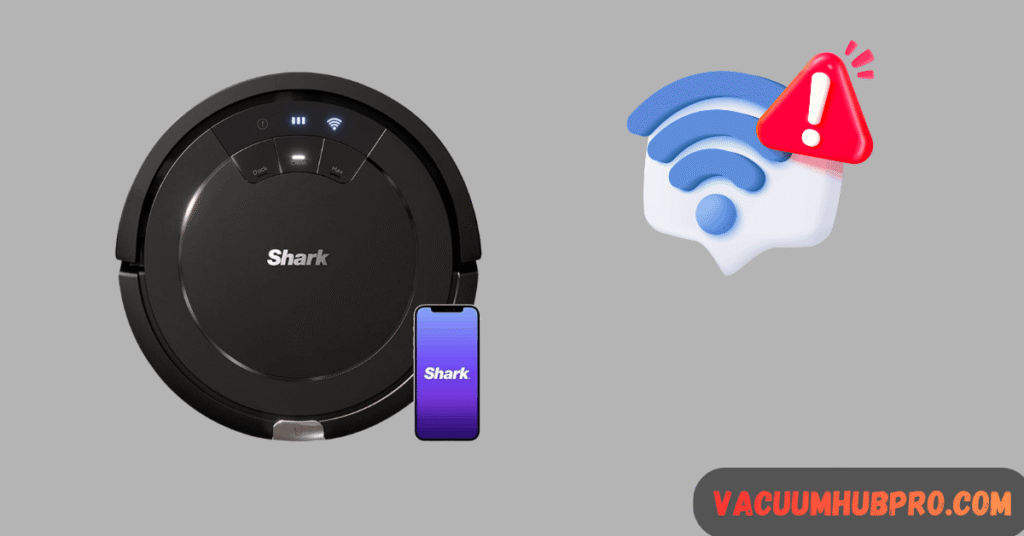
If your Shark RV754 robot vacuum won’t connect to the Shark Clean app — or gets stuck on “Searching for Wi-Fi” — you’re facing one of the most common Shark robot issues.
Why the Shark RV754 Fails to Connect
There are 6 technical reasons this issue happens:
- Router broadcasting combined 2.4GHz + 5GHz bands
- Android blocking Wi-Fi scanning permissions
- Router security set to WPA3 only
- Corrupted Shark Clean app cache
- Firmware handshake failure
- Wi-Fi module instability inside the robot
The RV754 only supports 2.4GHz Wi-Fi. That limitation is responsible for over 60% of connection failures.
Step 1: Confirm 2.4GHz Wi-Fi Is Active
The RV754 cannot see 5GHz networks.
Log into your router:
- Ensure 2.4GHz band is enabled
- Disable “Smart Connect” or band steering
- Temporarily separate 2.4GHz and 5GHz
- Rename 2.4GHz to something clear (Example: Home_2G)
Then:
- Connect your Android phone to the 2.4GHz network
- Attempt pairing again
If you skip this, nothing else will work.
Step 2: Factory Reset the Shark RV754
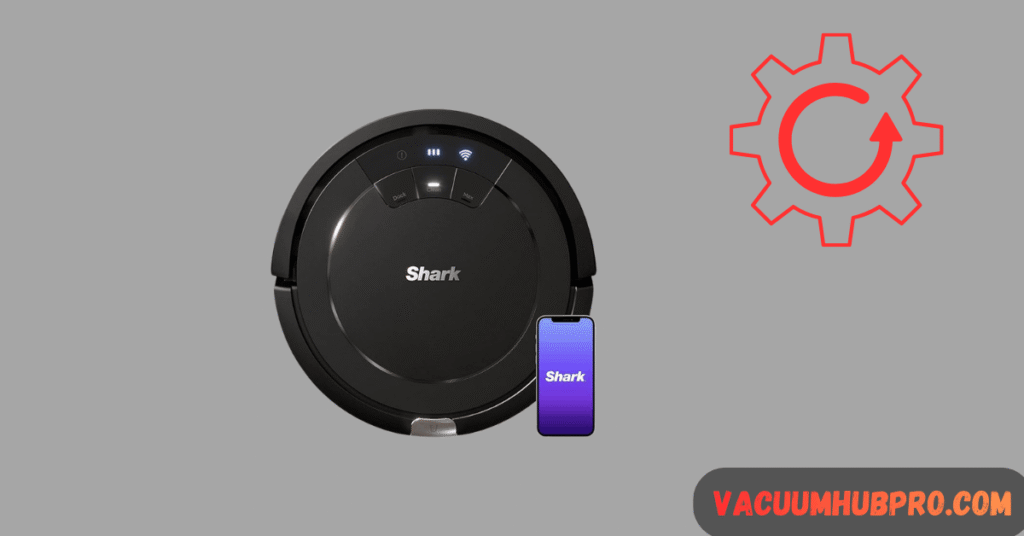
Soft resets are not enough.
Factory reset procedure:
- Turn robot ON
- Press and hold Dock + Clean for 10–15 seconds
- Wait for flashing indicator
- Power OFF
- Wait 60 seconds
- Power back ON
Now attempt pairing again.
Step 3: Fix Android Permission Blocking
Android 10+ requires location access for Wi-Fi scanning.
Go to:
Settings → Apps → Shark Clean → Permissions
Enable:
- Location (Allow all the time)
- Nearby devices
- Bluetooth
- Wi-Fi control
If Location is denied, the app will sit loading forever.
Step 4: Clear App Cache (Critical for Stuck Loading)
- Settings → Apps → Shark Clean
- Storage
- Clear Cache
- Force Stop
- Reopen app
If still stuck:
- Uninstall app
- Restart phone
- Reinstall fresh
Step 5: Disable VPN + Mobile Data
VPN interferes with local network discovery.
Before pairing:
- Turn off VPN
- Turn off mobile data
- Stay connected only to 2.4GHz Wi-Fi
Retry pairing.
Step 6: Router Security Compatibility
RV754 works best with:
- WPA2-PSK (AES)
- Visible SSID
- DHCP enabled
It may fail on:
- WPA3 only
- Enterprise security
- Hidden networks
Switch temporarily to WPA2 during setup.
Step 7: Hard Reboot Router
Unplug router for 3 full minutes.
This clears:
- DHCP conflicts
- ARP table issues
- Firmware glitches
Reconnect and retry pairing.
Advanced Network Fix (High Success Rate)
Create temporary hotspot:
- Use second phone
- Create 2.4GHz hotspot
- Use same SSID + password as home Wi-Fi
- Connect robot
- Once paired, switch back to home router
This bypasses router compatibility problems.
When It’s a Firmware Problem
If robot previously connected and suddenly won’t:
Possible causes:
- Router update
- ISP firmware push
- App update incompatibility
When It’s Hardware Failure
Rare but possible after 1+ year.
Signs:
- Wi-Fi network never appears
- Robot drops connection repeatedly
- Robot shows offline permanently
This suggests:
- Wi-Fi module failure
- Internal antenna issue
At that point, warranty claim may apply.
Can You Use RV754 Without App?
Yes.
You can press Clean manually.
However, you lose:
- Scheduling
- Firmware updates
- Cleaning history
- Error diagnostics
App connection is strongly recommended.
Frequently asked Questions (FAQs)
The Shark RV754 only supports 2.4GHz WiFi networks. If your router uses 5GHz or combined bands, the robot will fail to detect the network during setup.
On Android devices, missing location permission or corrupted app cache can prevent WiFi discovery, causing the app to remain stuck on the loading screen.
No. The Shark RV754 supports only 2.4GHz WiFi networks.
Press and hold the Dock and Clean buttons for 10–15 seconds until the robot resets, then power cycle it before attempting reconnection.